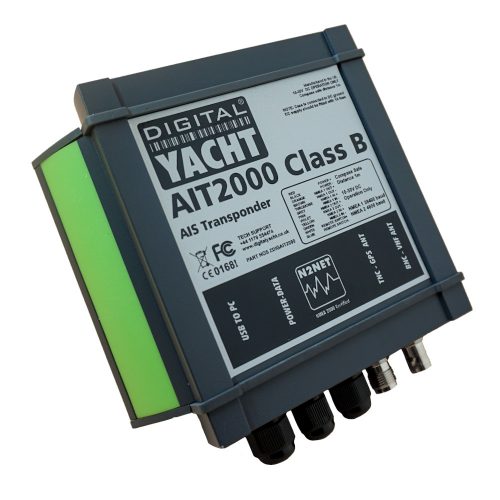
This is a very valid question. After spending several hours installing a transponder, it is understandably important to confirm that it is operating correctly. The proAIS2 configuration software allows you to verify that the GPS position is valid, monitor the reception of AIS signals from other vessels, and confirm that there are no errors or alarms. However, for those new to AIS, there is often a lingering uncertainty about whether your own vessel is being seen by others.
The most reliable way to test a Class B+ AIS transponder is to ask another vessel in your marina that is equipped with AIS to confirm that they are receiving your transmissions. When your vessel is stationary, the transponder transmits approximately every three minutes. Once your speed over ground (SOG) exceeds 2 knots, the transmission rate increases to every 30 seconds. For this reason, it is important to allow sufficient time for your signal to be detected. Additionally, upon initial reception, other vessels will see only your dynamic data—position, speed, course, and MMSI number. It may take up to six minutes for your static data (vessel name, call sign, vessel type, dimensions, etc.) to be received. This behavior is normal and reflects how the AIS system manages data transmission bandwidth.
Another increasingly common method of verifying AIS operation is to check one of the online “live” AIS tracking websites. Among the free services available, MarineTraffic.com is one of the most widely used.
It is important, however, to understand the limitations of these online platforms and not to assume that your vessel will always be visible on them. The accuracy and availability of these services depend entirely on their network of AIS receiving stations, which are often operated by volunteers and enthusiasts. Coverage can be excellent in some areas, but gaps in reception do exist.
 United States
 United Kingdom
 Canada
 France
 Europe
 Germany
 Australia
 Spain
Spain South America
 Italy
Italy Portugal
 South Africa